8 Tips to Increase Cellular Data Speed on iPhone in iOS 13
We can hardly live without the internet these days, and cellular data is indispensable to stay connected on the go. But a lot of times your data may be limited, so it’s a good idea to check your cellular data usage and turn it off when you don’t need it. Further, it’s also possible to increase cellular data speed on iPhone if you think it’s too slow and holding you back. So here are some tips to improve cellular data speed on your iPhone.
- Enable LTE on iPhone
- Turn Off Background Apps Refresh
- Turn Off Data Saver Mode on iPhone
- Disable Auto Downloads on iPhone
- Toggle On/Off Airplane Mode
- Restart your iPhone
- Reset Network Settings
- Update to Latest Version of iOS
Tip #1. Enable LTE on iPhone
LTE stands for Long Term Evolution and allows your phone to reach the highest available speed.
Step #1. To turn it on, go to Settings → Cellular → Cellular Data Options.

Step #2. Choose 4G, VoLTE On.

Tip #2. Turn Off Background Apps Refresh
Step #1. Go to Settings → General.

Step #2. Tap on Background App Refresh and toggle it OFF.

You can also disable Background App Refresh for specific apps by tapping on the toggle switch for them in the Background App Refresh menu.

This will prevent apps running in the background from being refreshed every few seconds and will thus speed up cellular data on your iPhone.
Tip #3. Turn Off Data Saver Mode
Step#1. Go to Settings → Cellular → Cellular Data Options
Step#2. Toggle OFF Low Data Mode.

Tip #4. Disable Auto Downloads on iPhone
Auto Downloads take up a lot of bandwidth and can slow down your internet speed. To increase cellular data speed on iPhone, disable Auto Downloads as follows:
Open the Settings app and tap your name and profile picture at the top and Tap on iTunes & App Store

Now, Turn Off toggle for Music, Apps, Books & Audiobooks, and Updates.

Tip #5. Toggle On/Off Airplane Mode
Go to Settings → Airplane Mode and toggle it ON. Wait a few seconds and then turn it OFF again. Then check if this improves your mobile data speed.

Tip #6. Restart your iPhone
Press and hold the power button and swipe right when on the slider appears. After about 15-20 seconds, turn on your phone by pressing the power button. This might help increase cellular data speed.
Tip #7 Reset Network Settings
If you’re still unable to improve the mobile data speed on your iPhone,
go to Settings → General → Reset.

Tap on Reset Network Settings. The phone will ask you for your passcode if you have set one. This step will erase your saved network information.

Tip #8. Update to Latest Version of iOS
Finally, if none of the steps have made a difference, you should make sure you have the latest version of iOS. For this,. go to Settings → General → Software Update.
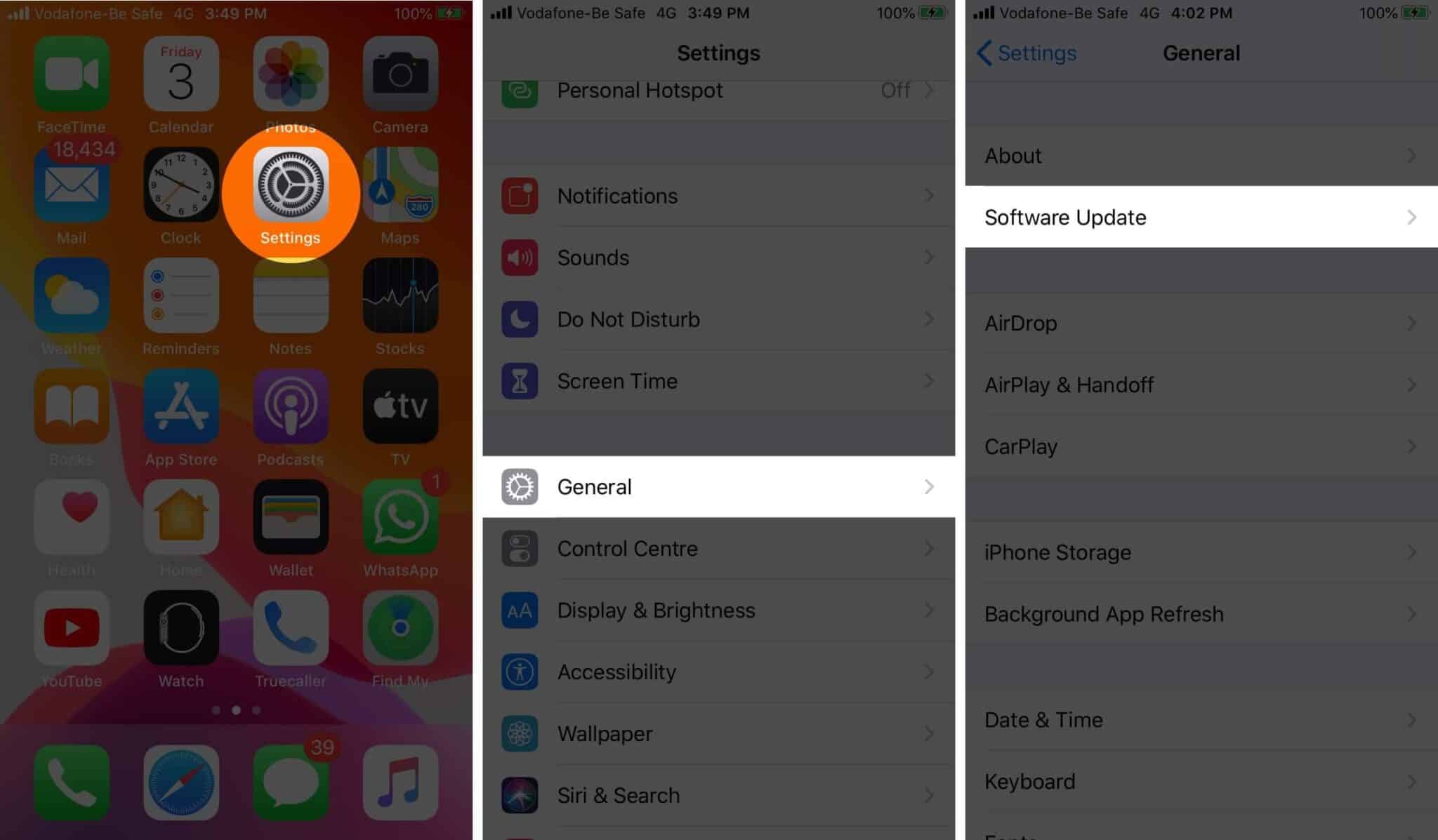
If there’s an update available, you’ll be able to download and install it.
Summing Up
Hopefully, one of these solutions will help you increase the cellular data speed on your iPhone. Let us know in the comments below what worked. If nothing has helped, you can contact your carrier to get further assistance.
You would like to read these posts as well: