Messages App Crashes in iOS 13 on iPhone and iPad? Tips to Fix
We all love iMessage, especially it’s cool features like Bubble effects and Screen effects. So it’s pretty sad and inconvenient when the Messages app crashes on iPhone repeatedly. But don’t worry, you can fix it with a few different solutions. Try all of these on iOS 13 or other versions and see which one works for you. Let’s have a look.
- Force Quit Messages App on iPhone
- Restart Your iPhone
- Delete Messages Automatically on iPhone
- Remove Unnecessary iMessage Apps
- Disable and Re-enable iMessage
- Update iOS on iPhone
- Reset All iPhone Settings
#1. Force Quit Messages App on iPhone
- On iPhone with no Home Button: Swipe up from the bottom of the screen and hold.
- On iPhone with Home Button: Double press the Home Button.
Now, drag the Messages app card up and dismiss it to force quit it. After a few seconds, reopen the app. The Messages app will no longer crash or freeze. If it does, please keep reading.
#2. Restart Your iPhone
You can use the buttons as you normally do to turn off your iPhone. You may also open the Settings app, tap General, and then tap Shut Down.

After a minute, switch on your iPhone. The Messages app problem will be successfully solved.
#3. Delete Messages Automatically on iPhone
If there are dozens or hundreds of conversations in your Messages app, then deleting some of them might help. You can open the app and manually choose and delete old conversations you no longer need.
Another way is to enable auto-deleting of messages after 30 days or 1 year. For this, Open the Settings app on your iPhone → Tap on Messages.
 Next, tap Keep Messages and choose an option other than Forever.

#4. Remove Unnecessary iMessage Apps
If you have too many iMessage apps, then deleting the ones that are not essential might help. Here is a step by step guide on how to delete iMessage app.
#5. Disable and Re-enable iMessage
Step #1. Open the Settings app on your iPhone.
Step #2. Tap Messages.
Step #3. Tap the toggle for iMessage to turn it off.

Step #4. After a minute, tap it again to enable it.
#6. Update iOS on iPhone
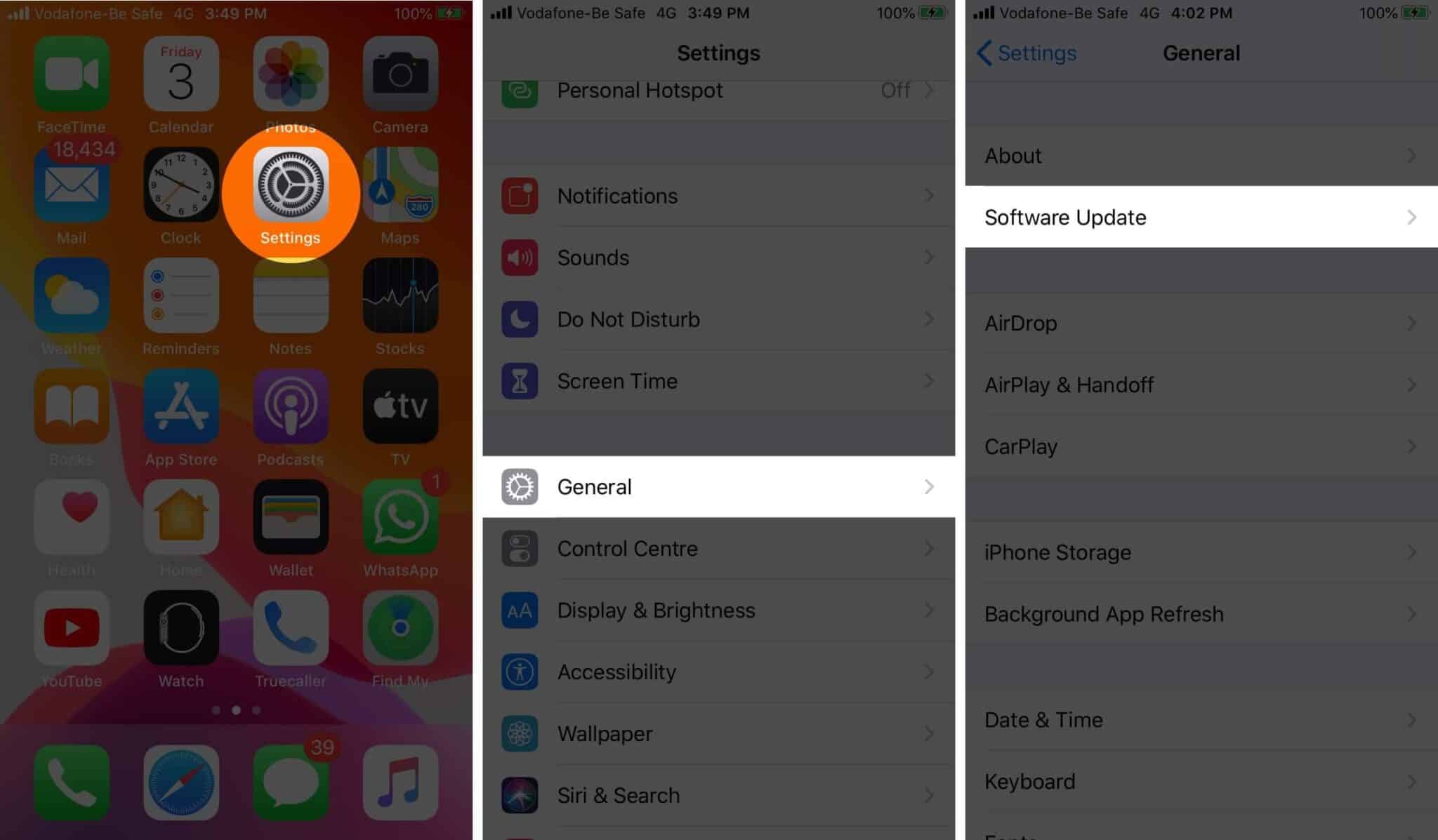
It is an excellent measure to have the latest iOS version on your iPhone. If you are facing frequent freezing or crashing of the Messages app, then a software update might help.
For this open the Settings app → Tap on General → Software Update, and if you have a pending update, tap on Download and Install.
#7. Reset All iPhone Settings
This will reset all iPhone settings like Wi-Fi, Bluetooth, VPN configurations, home screen layout, keyboard settings, and more. It won’t delete any personal data like apps, music, or photos. But still, take a backup before proceeding.
Step #1. Open the Settings app on your iPhone.
Step #2. Tap on General → Reset.

Step #3. Tap on Reset All Settings.
Step #4. Enter your iPhone’s password and confirm.

Once the process completes, you may need to sign in with your Apple ID. After that, open the Messages app, and most likely, the crashing and freezing problem will no longer be there.
Summing Up
That’s all, folks! Hopefully, this will solve the issue of the Messages app crashing on your iPhone. At last, if nothing helps, you may contact Apple Support for further assistance.
Meanwhile, you can also long-press the Messages app icon and tap New Message to send a text. For the time being, you can also use Siri to reply to incoming text messages. And you may share photos and videos directly from the Photos app until your problem is solved.
Have any further issues? Let us know in the comments section below.
Comments
Post a Comment